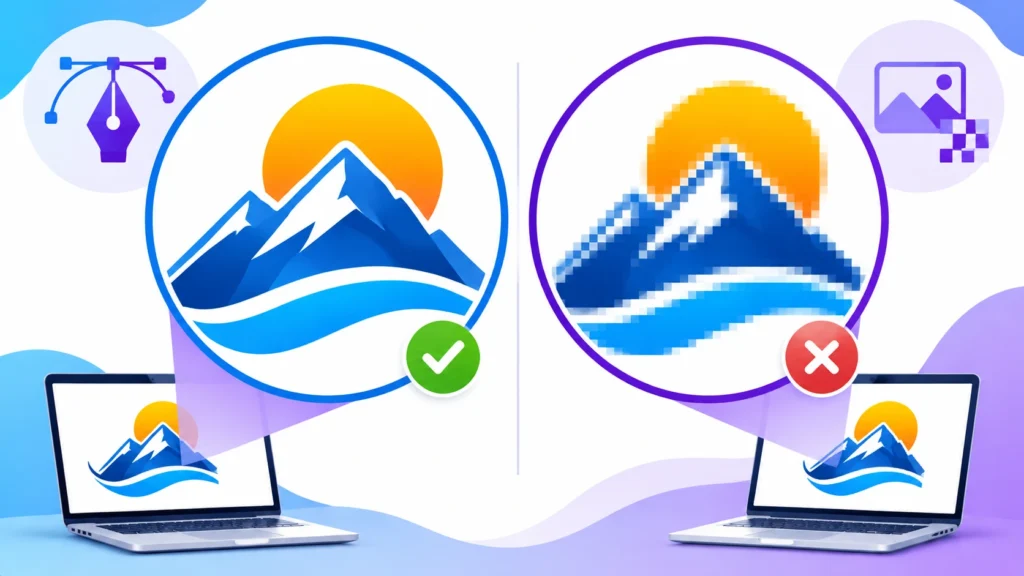
Have you ever sent a logo to a printer, only to discover that it looks blurry when enlarged? Or received a design request asking for an SVG, AI, or EPS file when you normally work with PNG and JPEG images? These situations often come down to one important difference: vector and raster graphics.
A vector file is a type of digital graphic that uses mathematical paths, points, lines, and curves to create images. Unlike regular pixel-based pictures, vector graphics can be resized without becoming blurry or losing their sharp edges. This makes them especially useful for logos, icons, illustrations, diagrams, and professional printing.
Understanding what a vector file is can save time when creating designs, sharing artwork, or preparing images for different platforms. It also helps you choose the right format for your project instead of relying on file extensions alone.
In this guide, you will learn how vector images work, explore common vector file formats, understand the difference between vector and raster graphics, and discover how to create or convert your own vector artwork.
What Is a Vector File?
A vector file is a digital graphic file that stores visual information using mathematical descriptions rather than a fixed grid of pixels. These descriptions define points, lines, curves, shapes, colors, and other design elements. When you open a vector image, compatible software reads these instructions and displays the artwork on your screen or prepares it for printing.
The biggest advantage is scalability. You can enlarge a vector logo from a small business card to a large outdoor banner without losing the sharpness of its original shapes. For example, imagine a company logo containing a circle, a few curved lines, and colored text. A vector file stores the instructions needed to draw those elements, allowing the software to redraw them at different sizes while keeping their edges clean.
Vector graphics are commonly used for:
- Business logos and brand identities
- Icons and user interface elements
- Illustrations and digital artwork
- Charts, diagrams, and technical drawings
- Posters, banners, and signs
- Product labels and packaging
- Maps and infographics
Vector files are especially useful when the same artwork needs to appear in multiple sizes or across different materials.
What Is a Vector Image?
A vector image is the visual artwork created from vector-based instructions. It consists of paths, anchor points, curves, and shapes that define how the image should appear. Think of a simple road map. Instead of storing every tiny colored square, a vector map can describe roads as connected lines, buildings as shapes, and locations as points.
This approach makes vector images flexible and easy to adjust. You can change the color of an object, move a shape, adjust a curve, or resize the entire illustration without rebuilding it from scratch.
A vector image can also be exported into a raster format such as PNG or JPEG. However, once exported as a regular raster image, that exported copy has a fixed pixel resolution. This distinction is important when preparing artwork for websites, printing, and other design projects.
How Does a Vector File Work?
Vector files work by storing mathematical instructions that describe the appearance of an image. These instructions generally include several important elements that work together to create the final graphic.
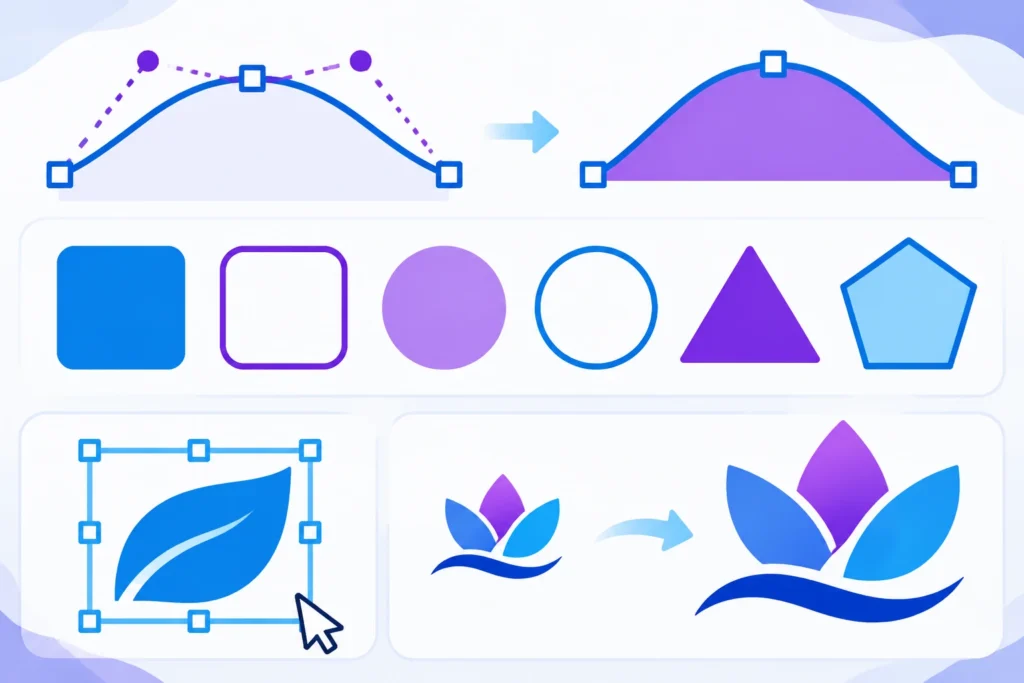
1. Anchor Points
Anchor points mark specific positions in a design. They help define the beginning, ending, and direction of paths. For example, a designer can place anchor points around a triangle to create its three corners.
2. Paths and Lines
Paths connect anchor points to create straight or curved outlines. They form the basic structure of many vector illustrations and allow designers to create everything from simple geometric shapes to detailed artwork.
3. Curves
Vector software uses mathematical curve definitions to create smooth shapes. Designers can adjust these curves to change the appearance of an object without losing the smoothness of its outline.
4. Fills and Strokes
A fill determines the color or appearance inside a shape, while a stroke controls its outline. A circle, for example, can have a blue fill and a black stroke.
5. Layers and Objects
More complex vector projects can contain multiple objects arranged into layers or groups. This makes it easier to edit individual elements without affecting the entire design. When the software displays the artwork, it calculates how these elements should appear at the selected size.
Vector vs. Raster Images: What’s the Difference?
Vector and raster graphics are two common ways of representing digital images, but they work differently. A vector image uses mathematical descriptions, while a raster image consists of individual pixels arranged in a grid. This difference affects image quality, editing, scalability, and the types of projects each format handles best.
Vector Images
Vector images are resolution-independent. Their shapes and paths can be recalculated when the artwork changes size. They are commonly used for logos, icons, diagrams, illustrations, and other graphics that need to remain sharp at different dimensions.
Raster Images
Raster images are made from pixels. Each pixel stores color information, and millions of pixels can combine to create detailed photographs and digital artwork. Common raster formats include PNG, JPEG, GIF, and TIFF.
When you enlarge a raster image beyond its original resolution, the pixels become more visible. This can create blurry or jagged edges.
Vector vs. Raster Comparison
| Feature | Vector Graphics | Raster Graphics |
|---|---|---|
| Structure | Mathematical paths and shapes | Individual pixels |
| Scalability | Resizes without quality loss | Limited by resolution |
| Best for | Logos, icons, illustrations | Photos and detailed artwork |
| Editing | Individual shapes and paths | Pixels and image areas |
| File formats | SVG, AI, EPS | PNG, JPG, TIFF |
| Printing | Excellent for scalable graphics | Depends on resolution |
| Photography | Usually not ideal | Excellent |
When Should You Use Vector or Raster?
Choose vector graphics when you need a design that will be resized frequently, such as a company logo, product label, or promotional banner. Their scalable structure makes them suitable for projects where the same artwork must work across different dimensions.
Choose raster graphics when you are working with photographs, realistic textures, complex lighting, or detailed digital paintings. Many professional projects combine both. For example, a brochure may use a vector logo alongside high-resolution raster photographs.
What Are the Common Vector File Formats?
Different vector formats serve different purposes. Some are designed for professional editing, while others are better for web graphics or printing. Understanding their differences can help you choose the right format when creating, editing, or sharing artwork.
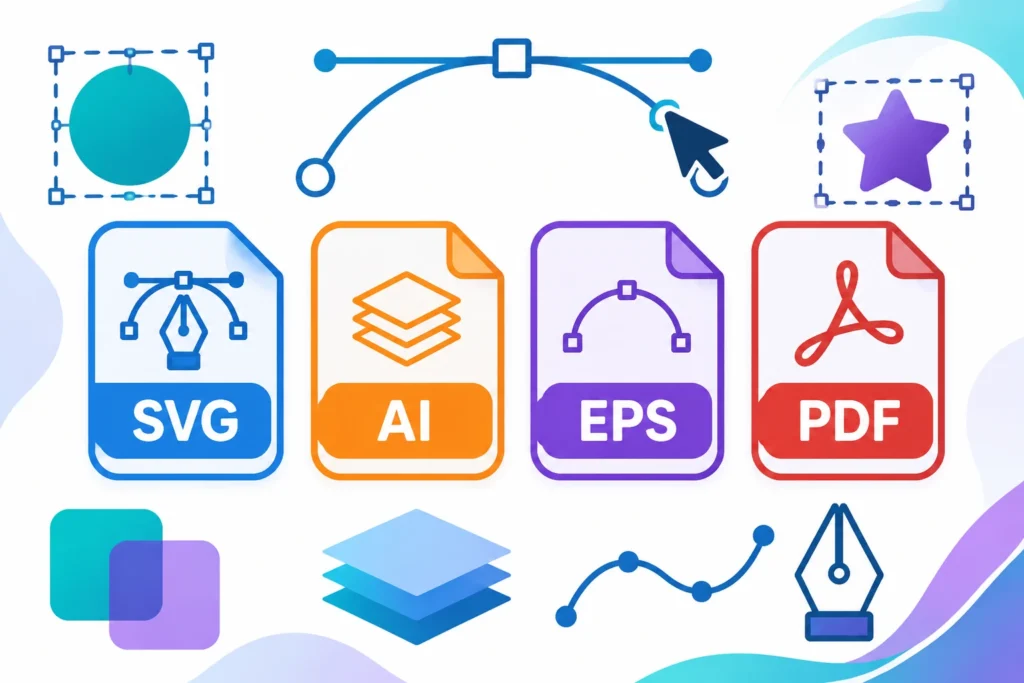
1. SVG (Scalable Vector Graphics)
SVG is a widely used vector format for websites and digital interfaces. It uses XML-based markup to describe shapes, paths, text, and other graphical elements.
SVG files are useful for:
- Website logos
- Icons and interface graphics
- Responsive illustrations
- Infographics
- Simple animations
- Interactive web graphics
Modern web browsers can display SVG files directly. Designers can also style and animate suitable SVG elements using web technologies.
2. AI (Adobe Illustrator)
AI is Adobe Illustrator’s native artwork format. It is commonly used by professional designers who need to create and edit logos, illustrations, branding materials, and complex vector artwork.
AI files can preserve editable objects, layers, paths, and other design information. They are particularly useful when a project will require future adjustments.
3. EPS (Encapsulated PostScript)
EPS is an older graphics format that has been widely used in professional printing and publishing. It can store vector artwork, text, and other graphical information.
EPS files are often requested when sending logos, illustrations, or print designs to suppliers that support this format. Although newer workflows often use PDF or other formats, EPS remains useful for compatibility with certain print and design systems.
4. PDF (Portable Document Format)
PDF is a document format that can contain both vector and raster content. A PDF exported from vector design software can preserve vector paths, text, and scalable artwork.
However, not every PDF is a vector file. A scanned document or an image exported into a PDF may contain only raster content. If you need an editable vector PDF, make sure the original artwork is exported without flattening or rasterizing the vector elements.
5. DXF (Drawing Exchange Format)
DXF is commonly associated with computer-aided design and technical drawings. It allows design information to be exchanged between different CAD applications.
Architects, engineers, manufacturers, and product designers may use DXF files when working with technical plans and drawings.
6. Other Vector Formats
Other formats include CDR for CorelDRAW projects and EMF for Windows-based graphics exchange. Each format has different compatibility and editing capabilities. Before sharing a file, check which formats the recipient’s software or printing provider supports.
What Is a Vector File Used For?
Vector graphics are used across many industries because they provide flexibility, clean edges, and convenient editing. Their ability to maintain sharpness at different sizes makes them useful for both digital projects and physical products.
Business Logos and Branding
A company logo needs to work across websites, business cards, packaging, uniforms, signs, and promotional materials. A vector master file makes it easier to maintain consistent branding across all these applications because designers can resize and modify the artwork without losing its original sharpness.
Printing and Advertising
Large printed graphics require artwork that remains sharp at different dimensions. Vector files are useful for banners, exhibition displays, posters, vehicle graphics, and outdoor signs where designs may need to be reproduced at considerably different sizes.
Website and App Design
SVG icons and illustrations can adapt to different screen sizes without the pixelation associated with enlarged raster graphics. They are also useful for interface elements that need to change color or respond to user interactions.
Digital Illustrations
Artists use vector software to create illustrations, characters, diagrams, and stylized artwork. The ability to edit individual paths and colors makes this approach useful for designs that need multiple variations.
Engineering and Architecture
Vector-based drawings are important in technical design. CAD applications use geometric information to represent measurements, components, floor plans, mechanical parts, and other structured drawings.
Product Packaging
Packaging artwork often needs to fit different box sizes, labels, and printing specifications. Vector files make it easier to adjust text, shapes, and graphic elements while maintaining clean edges.
What Is a Vector File Logo?
A vector file logo is a company or brand logo created and saved in a vector format. It contains editable design elements instead of being limited to a fixed collection of pixels.
This matters because the same logo may need to appear on a small website icon, a business card, a product label, or a large advertising display. A vector logo can be resized for these different uses without losing its original sharpness.
Designers commonly deliver vector logos in formats such as SVG, AI, EPS, or vector-based PDF. If a printer or marketing agency asks for your logo in vector format, they generally want the original scalable artwork rather than a small PNG downloaded from your website.
What Is a Vector File Example?
A simple company logo is one of the easiest ways to understand a vector file. Imagine a logo containing a blue circle, a green leaf, and the company name underneath. In a vector design application, each element can be created as an editable object.
The circle can be resized, the leaf can be moved, and the text color can be changed without affecting the quality of the other elements.
Other common vector examples include:
- A location pin used on a digital map
- A simple business icon
- A geometric illustration
- A company wordmark
- A technical floor plan
- A chart with editable shapes and labels
These examples demonstrate why vector graphics are suitable for designs that need to remain flexible.
Is a PNG a Vector File?
No. PNG is a raster image format, not a vector format. A PNG image stores visual information as pixels. It can support transparent backgrounds, which makes it useful for website graphics, logos, icons, and other digital images.
However, a PNG logo does not become a vector simply because it has a transparent background or a high resolution. If you enlarge a PNG beyond its available pixel dimensions, its edges may become blurry or pixelated.
To create a vector version, you need to recreate the artwork using vector paths or use an image-tracing tool and refine the resulting shapes.
Is a Vector File Just a PDF?
No. A vector file and a PDF are not the same thing. PDF is a flexible document format that can contain vector graphics, raster images, text, fonts, and other elements.
For example, a PDF exported from Adobe Illustrator may preserve editable vector artwork. A scanned PDF, on the other hand, may simply contain a photograph or raster image of a document. If someone requests a vector PDF, confirm that the artwork inside the PDF remains vector-based.
How to Create a Vector File
You can create vector artwork from scratch or convert an existing image into vector paths. Both approaches can be useful depending on your starting point and the quality you need.
Method 1: Create a Vector File From Scratch
If you are designing a new logo, icon, or illustration, you can build it directly in vector software. Follow these steps:
- Open a vector design application such as Adobe Illustrator, Affinity, or Inkscape.
- Create a new document with suitable dimensions.
- Select drawing tools such as the Pen, Shape, or Rectangle tools.
- Add anchor points and create the required paths and shapes.
- Apply colors, fills, and strokes.
- Organize your artwork using layers and groups.
- Save the editable project in its native format.
- Export a copy as SVG, PDF, EPS, or another format required by your project.
Creating the artwork directly as vectors usually gives you better control over the final result.
Method 2: Convert a PNG or JPEG Into a Vector File
If you already have a raster image, you can use image-tracing software to convert its visible shapes into vector paths. For example, Adobe Illustrator includes an Image Trace feature.
A general conversion process looks like this:
- Open your PNG or JPEG in a vector editing application.
- Select the image.
- Open the image-tracing tool.
- Choose a suitable tracing preset.
- Adjust settings such as colors, paths, corners, and noise.
- Preview the result and correct unwanted shapes.
- Expand or convert the trace into editable paths.
- Clean up the artwork and save it in a vector format.
Automatic tracing works best with clear logos, simple illustrations, and graphics with defined edges. Photographs and complicated images may produce thousands of paths and unwanted shapes. They often require significant manual editing or complete recreation.
Remember that converting a raster image into a vector file does not automatically restore original design details that were missing from the source image.
Best Software to Create and Edit Vector Files
Several design applications can help you create, open, and edit vector graphics. The right choice depends on your experience, budget, preferred features, and the formats required for your projects.
Adobe Illustrator
Adobe Illustrator is a professional vector design application used for logos, illustrations, typography, and branding projects. It supports AI files and can export artwork into formats such as SVG, EPS, and PDF.
Affinity
Affinity provides vector and raster design capabilities in its creative application. It is useful for illustrations, logos, layouts, and other graphic design projects.
Inkscape
Inkscape is a free, open-source vector graphics editor. It supports SVG as its primary format and offers tools for drawing paths, editing nodes, creating shapes, and preparing illustrations.
It is a practical starting point for beginners who want to learn vector design without purchasing professional software.
CorelDRAW
CorelDRAW is another established graphics application used for vector illustration, branding, sign design, and print production. It is particularly relevant in workflows involving professional graphics and commercial printing.
Choose software based on your project requirements, budget, preferred file formats, and the applications used by people you collaborate with.
How to Open a Vector File
The software you need depends on the file format. Some vector files can be opened directly in a web browser, while others require dedicated design or CAD applications.
- SVG: Open it in a modern web browser or a compatible vector editor.
- AI: Use Adobe Illustrator or compatible applications that support the file.
- EPS: Open it in suitable professional design software.
- PDF: Use a PDF reader for viewing or a vector editor for supported editing.
- DXF: Use compatible CAD applications.
- CDR: Use CorelDRAW or software with appropriate CDR support.
Some applications can display a vector file without preserving every editable element. If you need to change the original artwork, use software that supports its native format.
How to Know If You Have a Vector File
If you are unsure whether an image is vector-based, there are several ways to check. Looking at the extension, examining the image at different sizes, and opening it in compatible software can help you identify its structure.
Check the File Extension
Look at the file name and extension. Common vector formats include:
.svg.ai.eps.dxf.cdr
PDF files require additional checking because they can contain either vector or raster content.
Zoom In on the Artwork
Open the image and increase its size significantly. If the edges remain smooth, the image may be vector-based. If you see visible pixels and jagged edges, it is likely raster artwork.
However, this is only a practical visual test, not definitive proof. A high-resolution raster image can also look sharp at moderate zoom levels.
Open It in a Vector Editor
Try opening the file in a compatible vector application. If the software allows you to select individual paths, shapes, or text objects, the file likely contains editable vector elements.
An image that appears as one flat object may be raster content placed inside a vector document.
Ask the Original Designer
If the artwork was created by a professional designer, ask for the original editable source file. This is often the easiest way to obtain a genuine vector master rather than trying to reconstruct an image from a low-resolution copy.
Advantages and Disadvantages of Vector Files
Vector graphics provide several benefits, but they are not the best solution for every type of image. Understanding both their strengths and limitations helps you decide when to use them.
Advantages
- Scalable without pixelation: Vector graphics can be resized without losing the sharpness of their paths.
- Easy to edit: Designers can adjust individual shapes, colors, curves, and text elements.
- Suitable for printing: They work well for artwork that needs to appear at different print dimensions.
- Flexible file exports: Many vector applications can export artwork into formats suited to websites, printing, and sharing.
- Efficient for simple graphics: Logos, icons, and illustrations can often be stored efficiently as vector paths.
Disadvantages
- Not ideal for photographs: Vector graphics are less suitable for realistic photographs and complex natural textures.
- Requires compatible software: Some native vector formats need specific applications for full editing.
- Complex artwork can become difficult to manage: Detailed illustrations with many paths and effects can create large, complicated files.
- Automatic tracing needs cleanup: Converting photographs or complicated raster images into vectors may produce inaccurate or excessive paths.
Understanding these limitations helps you choose the correct format for each project.
Frequently Asked Questions
What is a vector file in simple terms?
A vector file is a digital graphic made from mathematical paths, points, lines, and shapes rather than a fixed grid of pixels. It can be resized without losing the sharpness of its original artwork.
What is the most common vector file format?
SVG, AI, EPS, and vector-based PDF are among the most commonly used vector formats. The best option depends on whether you are designing for websites, professional editing, or printing.
Is a PNG a vector file?
No. PNG is a raster format made of pixels. It can support transparency, but it does not provide the resolution-independent scalability of vector graphics.
Is a PDF always a vector file?
No. A PDF can contain vector paths, raster images, or a combination of both. Its contents depend on how the original document was created and exported.
What is an EPS vector file?
EPS stands for Encapsulated PostScript. It is an established graphics format used to store vector artwork and other graphical information, particularly in certain professional printing workflows.
What is an AI vector file?
An AI file is the native artwork format associated with Adobe Illustrator. It can preserve editable vector objects, paths, layers, and other design information.
What is a vector format used for?
Vector formats are commonly used for logos, illustrations, icons, technical diagrams, branding materials, signs, packaging, and other graphics that need to scale cleanly.
How do I make a vector file from a PNG?
Open the PNG in vector design software and use an image-tracing feature to create paths. Review and refine the traced artwork before saving it as SVG, AI, EPS, or another suitable vector format.
Can I convert a JPG into a vector file?
Yes. A JPG can be traced into vector paths using compatible software. However, photographs and detailed images may require substantial editing, and the conversion will not recreate missing original details.
Which vector file is best for a logo?
SVG is useful for websites and digital applications. AI is useful as an editable Illustrator source file, while EPS and vector-based PDF may be suitable for certain printing workflows. Keeping an editable master file is a good practice.
Can I edit an SVG file?
Yes. SVG files can be edited in compatible vector applications and some text editors because SVG uses XML-based markup. The amount of editing possible depends on how the file was created.
Are vector files better than raster images?
Neither format is universally better. Vectors are preferable for scalable graphics, while raster images are better suited to photographs and detailed pixel-based artwork.
Final Thoughts
Understanding what a vector file is makes it easier to choose the right format for graphic design, branding, printing, and digital projects. Vector graphics use mathematical paths and shapes rather than fixed pixels, which allows them to maintain clean edges when resized.
Formats such as SVG, AI, EPS, and vector-based PDF serve different purposes across professional design and everyday workflows. If you regularly work with logos, illustrations, or print materials, keeping an editable vector master can save time and prevent quality problems later.
The most important thing is to match the file format to your project. Use vectors when scalability and editing matter, and choose raster images when photographic detail is the priority.